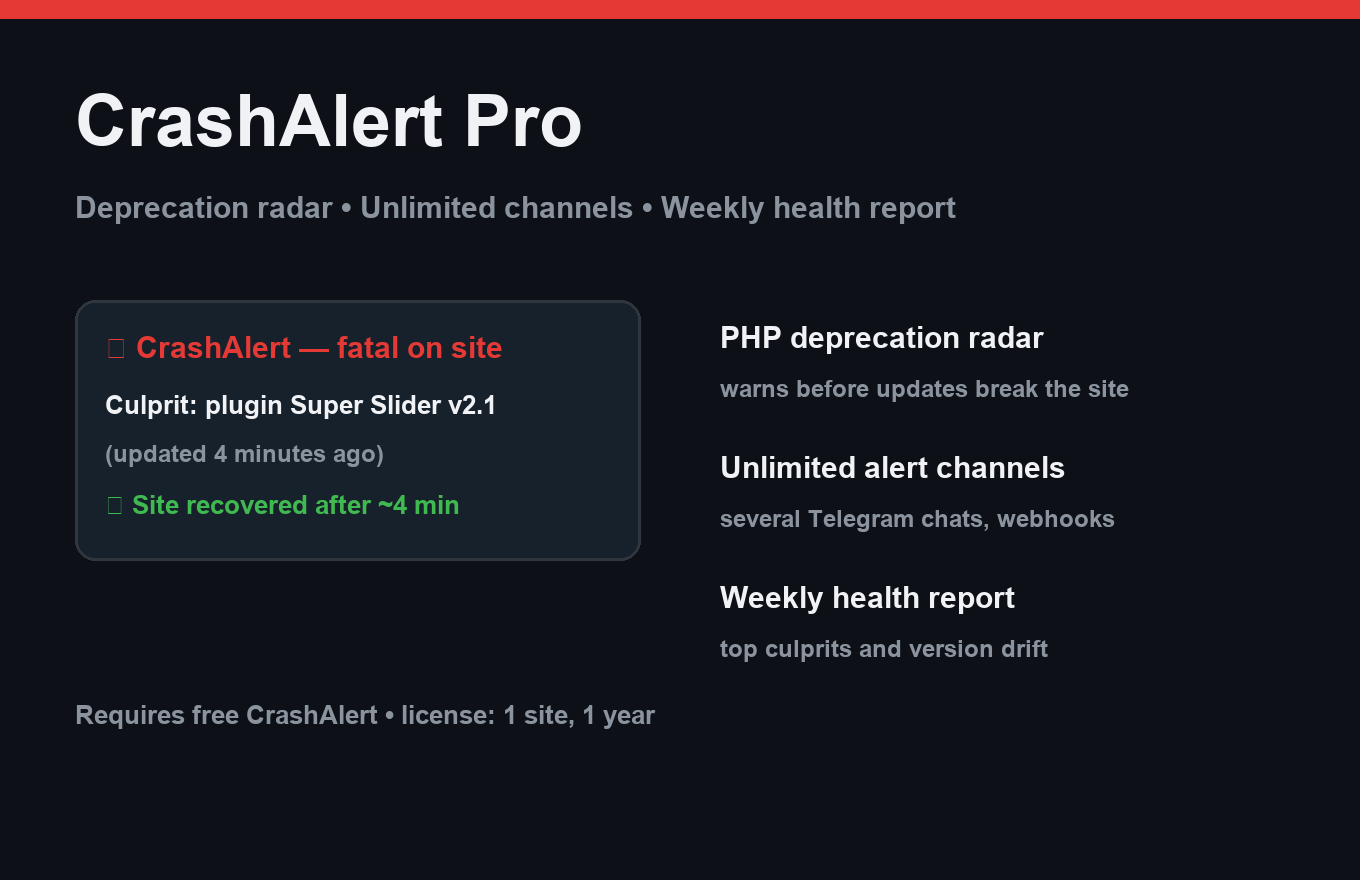
CrashAlert Pro
Know your site is down before your customers tell you.
Instant delivery: license key + download right after payment.
About
When a WordPress site fatals, the core email lands in spam and says nothing about repeats or recovery. CrashAlert sends a Telegram alert in seconds: which plugin crashed, which version, what was updated right before, and a human-readable explanation of what happened.
Pro adds recovery tracking and a maintenance window: during planned updates, CrashAlert watches every change and tells you the moment the site is healthy again — or exactly which update broke it.
What it does
- Telegram alert within seconds of a fatal error
- Culprit plugin + version in every alert
- Plain-language explanation, no stack-trace archaeology
- "Site is back up" recovery notice (file-based, survives the crash)
- Last-event file in uploads, closed with .htaccess
- ~5 ms overhead on a healthy request; alerts leave via cron queue
- One license = one site, 12 months of updates
Free vs Pro
| Free | Pro | |
|---|---|---|
| Telegram alerts | Yes | Yes + custom routes |
| Recovery notice | Last event only | Full up/down history |
| Update correlation ("what changed") | — | Included |
| Quiet hours & retry rules | — | Included |
FAQ
Will it slow my site down?
No. On a healthy request it only reads one option — about 5 ms total. Alerts leave via a cron queue after the page is served.
What if the site is so down that nothing runs?
The last event is written to a file in uploads/crashalert/ (folder blocked via .htaccess) and sent once the site recovers.
Does it replace the core recovery email?
It complements it. The core email still arrives; CrashAlert is the fast, specific, spam-proof channel.
Installation & uninstall
Free version
- Download the zip archive with the "Download free" button above.
- In your WordPress admin: Plugins → Add New → Upload Plugin.
- Pick the downloaded zip, click "Install Now", then "Activate".
- The plugin's menu appears in wp-admin — configure it to your liking.
Pro version
- After payment, download the Pro archive from your order page (the link is also emailed).
- Install Pro like any plugin: Plugins → Add New → Upload Plugin → Activate.
- The free version must be installed and active — Pro sits on top as a companion.
- Enter the license key on the plugin's Pro settings page.
Uninstall
- Plugins → find the plugin in the list → click "Deactivate".
- Then click "Delete" — the plugin and all its data (tables, settings, logs) are removed completely.
- The Pro companion uninstalls the same way, independently; the free version keeps working.
Every plugin we ship passes a clean-uninstall test: after "Delete" no tables or leftover settings remain in the database.
Reviews
No reviews yet — be the first.