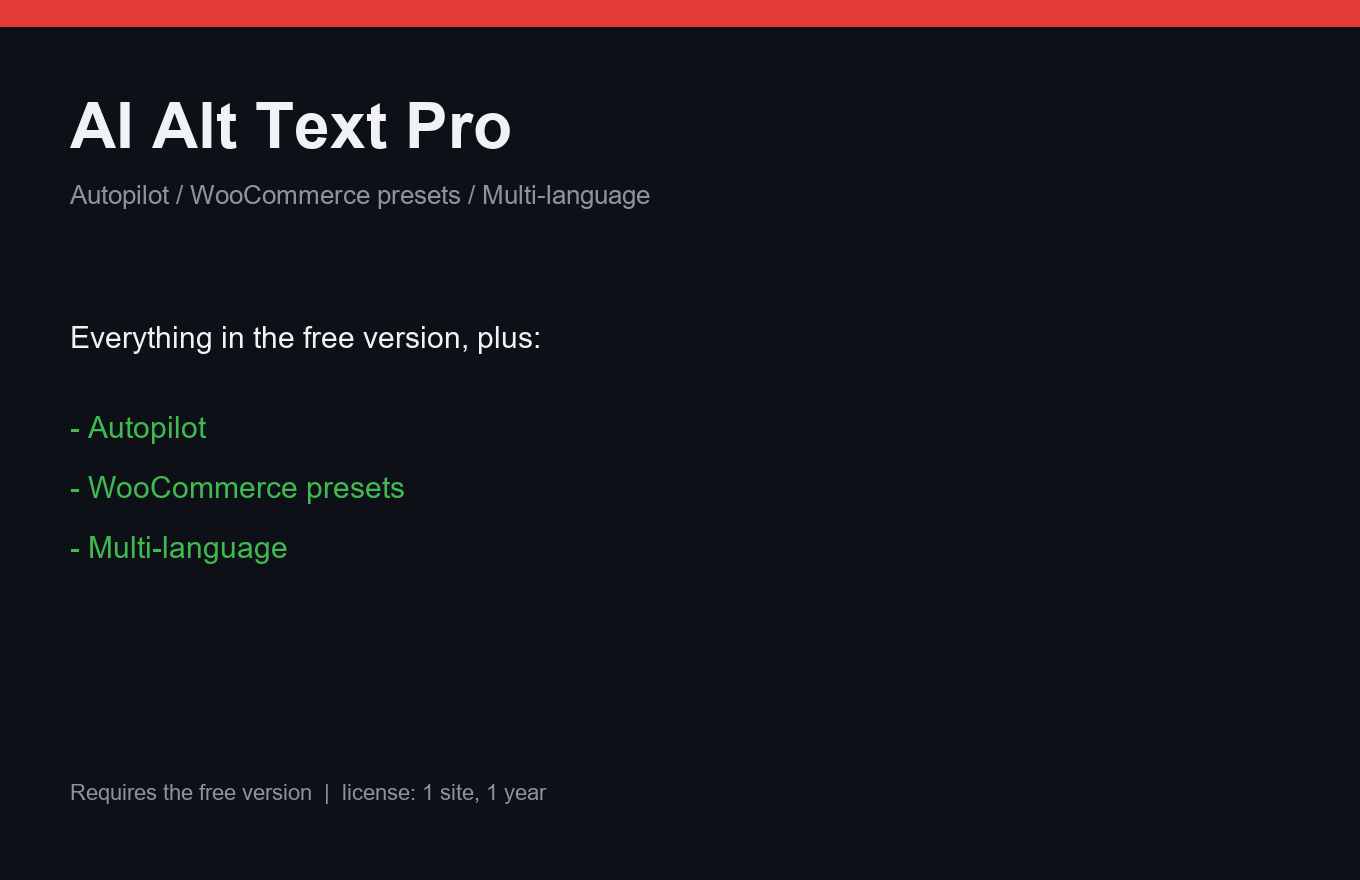
AI Alt Text Pro
Alt text for every image — written before you finish your coffee.
Instant delivery: license key + download right after payment.
About
The free AI Alt Text drafts alt texts with your vision-API key. Pro turns it on autopilot: new uploads get alt text automatically, but only when the model is confident — a low-confidence draft waits for you instead of silently going live.
WooCommerce presets write gallery alts by template ("{product} — view {N}"), so product galleries stop shipping "IMG_4032". Multilingual generation covers EN/RU/DE/ES in one pass. Your API key stays yours: the plugin calls the vision API directly from your site.
What it does
- Autopilot: alt text on upload, gated by confidence threshold
- Style and language profiles: how your alts should sound
- WooCommerce gallery presets: "{product} — view {N}"
- Multilingual generation: EN/RU/DE/ES in one pass
- Your own vision-API key — no middleman, your costs
- Priority support
- One license = one site, 12 months of updates
Free vs Pro
| Free | Pro | |
|---|---|---|
| Draft alt text (your key) | Yes | Yes |
| Autopilot on upload | — | Included |
| Confidence gate | — | Included |
| WooCommerce presets + multilanguage | — | Included |
FAQ
Which API does it use?
Any OpenAI-compatible vision endpoint — you bring your own key and choose the model. The plugin runs the calls from your server.
What does autopilot cost me?
Only your API provider's per-image cost (typically well under a cent). The plugin adds nothing on top.
Can I review before anything is saved?
Yes — set the confidence threshold high, or run drafts-only mode. Nothing goes live without your rules.
Installation & uninstall
Free version
- Download the zip archive with the "Download free" button above.
- In your WordPress admin: Plugins → Add New → Upload Plugin.
- Pick the downloaded zip, click "Install Now", then "Activate".
- The plugin's menu appears in wp-admin — configure it to your liking.
Pro version
- After payment, download the Pro archive from your order page (the link is also emailed).
- Install Pro like any plugin: Plugins → Add New → Upload Plugin → Activate.
- The free version must be installed and active — Pro sits on top as a companion.
- Enter the license key on the plugin's Pro settings page.
Uninstall
- Plugins → find the plugin in the list → click "Deactivate".
- Then click "Delete" — the plugin and all its data (tables, settings, logs) are removed completely.
- The Pro companion uninstalls the same way, independently; the free version keeps working.
Every plugin we ship passes a clean-uninstall test: after "Delete" no tables or leftover settings remain in the database.
Reviews
No reviews yet — be the first.